
Optimizing one product is good. Optimizing 100 in one click is better. The Batch mode is the most powerful feature of Fexa AI for large catalogs.
But before launching the AI, you have to tell it what to work on.
Accessing the Batch Generator
- Go to the Scan & Score menu.
- Click on the "Batch Generator" tab at the top (or the "Bulk Actions" button depending on your version).
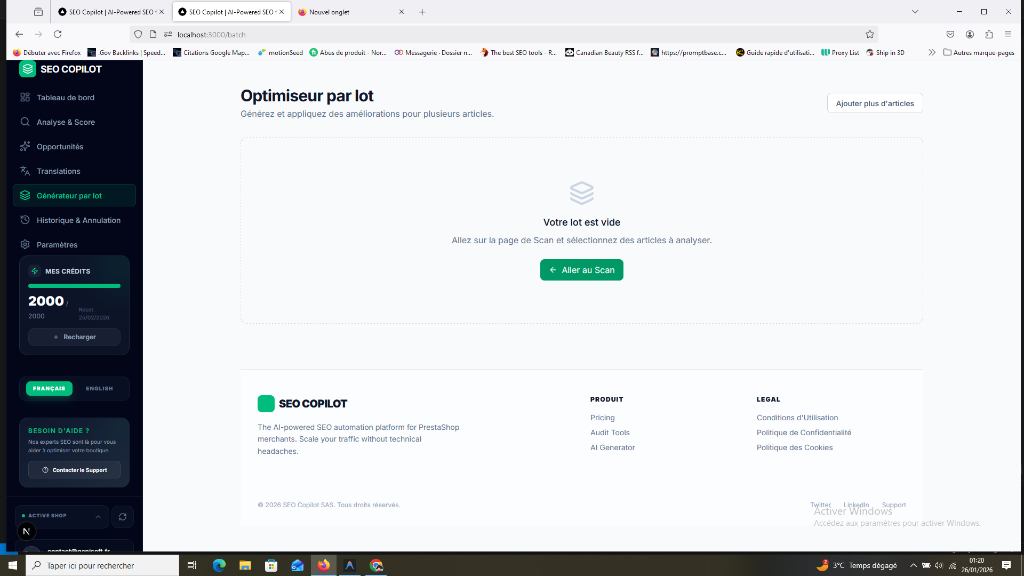
Smart Filters
You probably don't want to optimize the ENTIRE site at once. You want to work methodically. Use the filters on the left to target:
- By Category: E.g., "Clothing > Men > T-shirts".
- By SEO Score: E.g., "All products with a score < 50".
- By Status: E.g., "Non-optimized products only".
- By Name: Text search.
Selecting products
Once your filter is applied, the list of matching products is displayed. You can:
- Check the "Select All" box at the top to take everything.
- Manually check certain products.
A counter at the bottom tells you: "Selected: 45 products".
Security Tip: For a first test, start with a small selection (e.g., 5 products) to check that you like the result before launching on 1000 products.
Ready for takeoff?
Your products are selected. They are in the AI's "basket". In the next step, we will configure the instructions (Prompts) for this specific batch.
Next step: Generating mass optimizations