
Le Batch Generator est l'outil ultime pour les boutiques à gros catalogues. Plus besoin d'optimiser chaque produit à la main : l'IA traite vos fiches produits par lots, intelligemment.
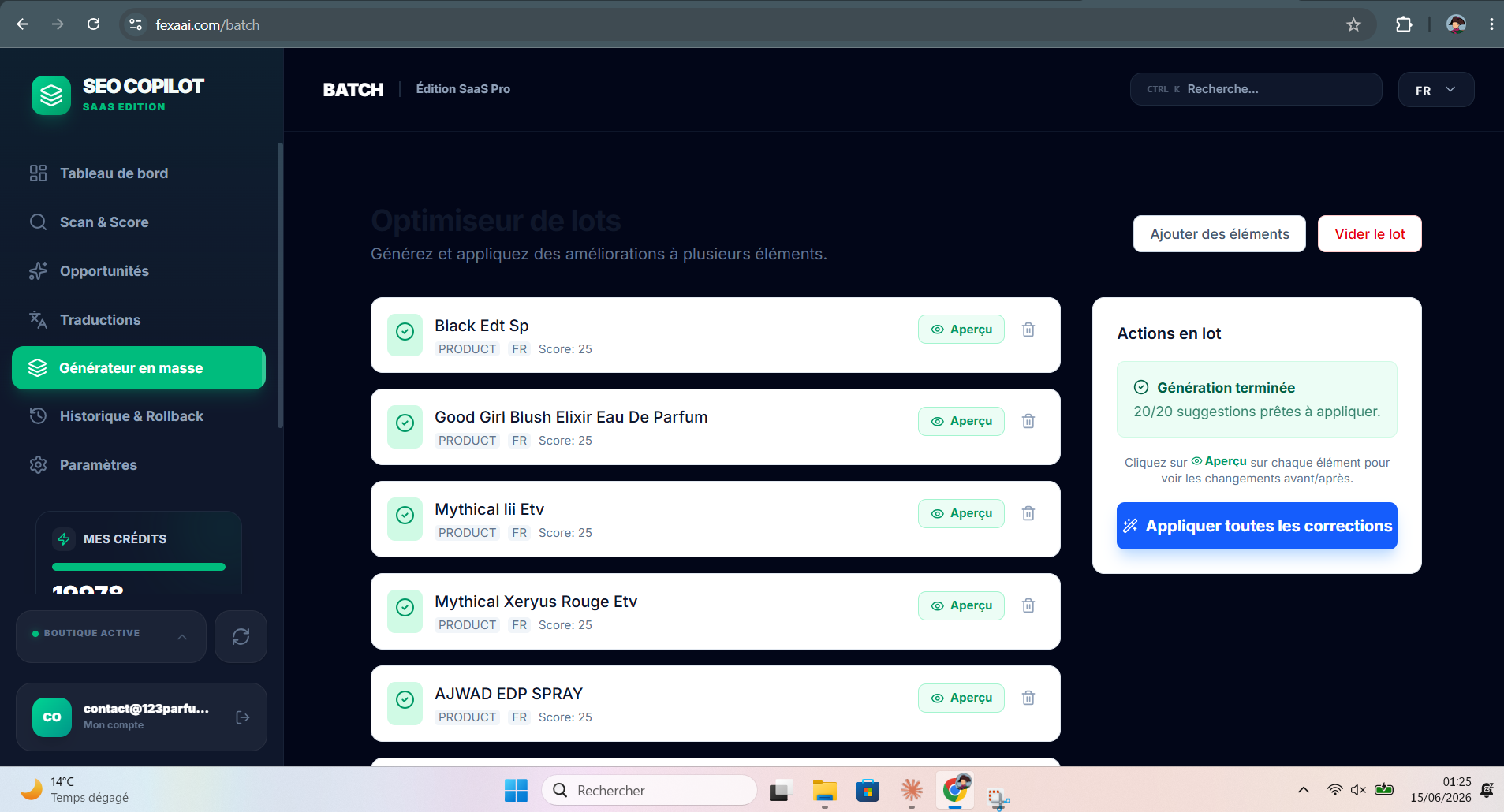 L'interface du Générateur en masse : une fois la génération terminée, chaque fiche peut être prévisualisée (avant/après) avant d'appliquer toutes les corrections d'un seul clic.
Pourquoi choisir l'optimisation par lot (Batch) ?
| Fonctionnalité | Optimisation Manuelle | Batch IA Fexa |
|---|---|---|
| Vitesse | 10-15 min / produit | < 1 sec / produit |
| Cohérence | Difficile sur 1000 fiches | Parfaite (via Brand Voice) |
| SEO Score | Variable | Maximisé systématiquement |
| AEO Score | Souvent oublié | Inclus par défaut |
Comment lancer votre premier Batch ?
Sélectionnez jusqu'à 50 produits par lot, puis, dans le panneau du Batch Generator, cliquez sur le bouton "Generate Suggestions". L'IA va alors :
- Analyser chaque produit sélectionné.
- Appliquer vos réglages de Ton Éditorial (ex: Professionnel, Amical).
- Injecter vos principes d'Identité de Marque définis dans la configuration.
Bon à savoir : la génération s'appuie sur Gemini 3.1 Pro (moteur premium par défaut) et sur la mémoire de signature anti-template : chaque fiche d'un même lot reçoit son propre angle éditorial, pour éviter l'effet « copié-collé » sur tout le catalogue. Voir Sur quoi l'IA se base.
Le workflow de vérification
Une fois la génération terminée, le statut passe en "Review". Fexa AI vous offre un tableau comparatif avant/après pour une revue rapide. La prévisualisation affiche tout ce qui sera écrit sur la fiche :
- Aperçu global : Vérifiez que les nouveaux Meta Titles sont plus accrocheurs.
- Détail individuel : Cliquez sur l'icône "Eye" (l'œil) pour une prévisualisation complète, qui inclut désormais :
- la balise Title et la méta-description ;
- les descriptions (courte et longue) ;
- la FAQ générée (questions/réponses) ;
- les balises ALT des images.
- Validation : si une partie ne vous convient pas, inutile de retirer tout le produit — voir le contrôle par champ ci-dessous.
Contrôle par champ : ne validez que ce que vous voulez
Chaque champ de la prévisualisation possède sa propre case à cocher. Décochez n'importe quel élément (par exemple la FAQ, ou une balise ALT précise) pour l'exclure de l'application, tout en gardant le reste.
C'est utile lorsque :
- vous voulez appliquer le nouveau Title et la nouvelle méta-description, mais conserver votre description actuelle ;
- la FAQ générée ne correspond pas tout à fait à un produit, mais le reste est parfait ;
- vous préférez ne pas toucher aux ALT sur certaines images déjà optimisées.
Seuls les champs cochés seront écrits sur votre boutique. Un produit dont tous les champs sont décochés est simplement ignoré lors de l'application.
Astuce SEO : Utilisez le Batch pour vos produits "Striking Distance" (ceux en page 2 de Google) afin de les propulser en page 1 rapidement.
Prochaine étape : Appliquer les modifications et publier